
If you already have Google Tag Manager (GTM) on your site, you can use it to implement tracking. In this guide, we go through the event types you need, how to set them up via GTM, and how to troubleshoot your setup.
Event types in Tracking
When you use GTM, you need to – just as with direct implementation – consider which pages each event should be fired from.
Required events
hlt.visit(PRODUCTID, CATEGORYID, CATEGORYNAME): Sent when visiting subpages, product pages and category pages. Takes product ID, category ID and category name. On subpages the values can be empty, and on category pages the product ID can be omitted.
hlt.addToBasket(PRODUCTID, AMOUNT, CATEGORYID, BASKETID, CATEGORYNAME): Fired when a customer adds a product to the basket, or from the basket page. If it is fired from the basket page, one event must be sent per product in the basket.
hlt.purchasedBasket(PRODUCTID): Fired from the thank-you page when a purchase is completed. Used, among other things, to know when a lost basket should not be sent. Product ID is optional.
Optional events
hlt.removeFromBasket(PRODUCTID): Sent from the basket page when a product is removed from the basket.
hlt.pairEmail(EMAIL): Pairs a cookie with an email address. If you do not use this event, the “click in email to pair a member” function is used automatically.
hlt.heartbeat(): Used on pages where there is no product information.
Implementation via Google Tag Manager
Step 1: Create a new tag with custom HTML
In GTM, you create a new tag and select Tag Type → Custom HTML.
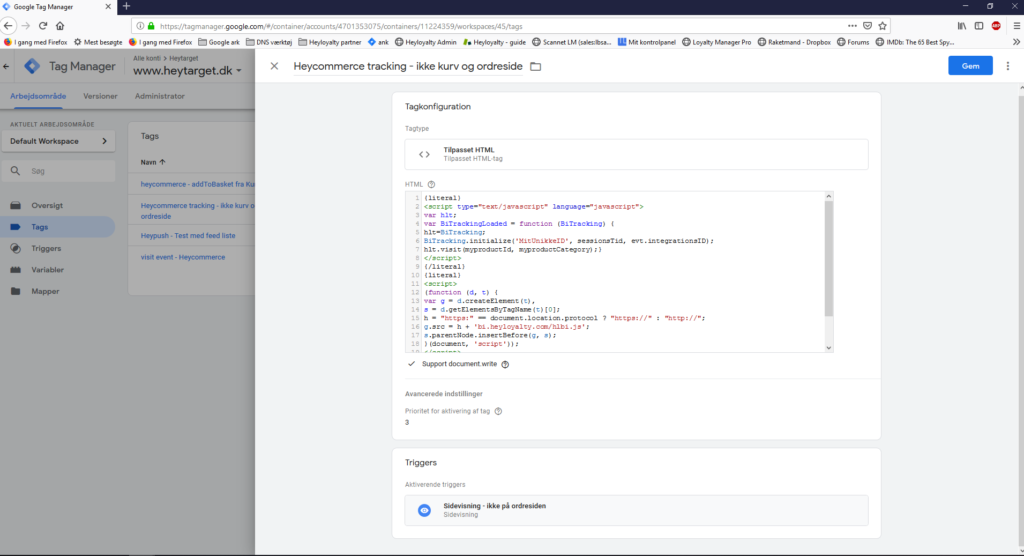
Insert your tracking script with the parameters that your website uses.
Step 2: Define triggers for each event
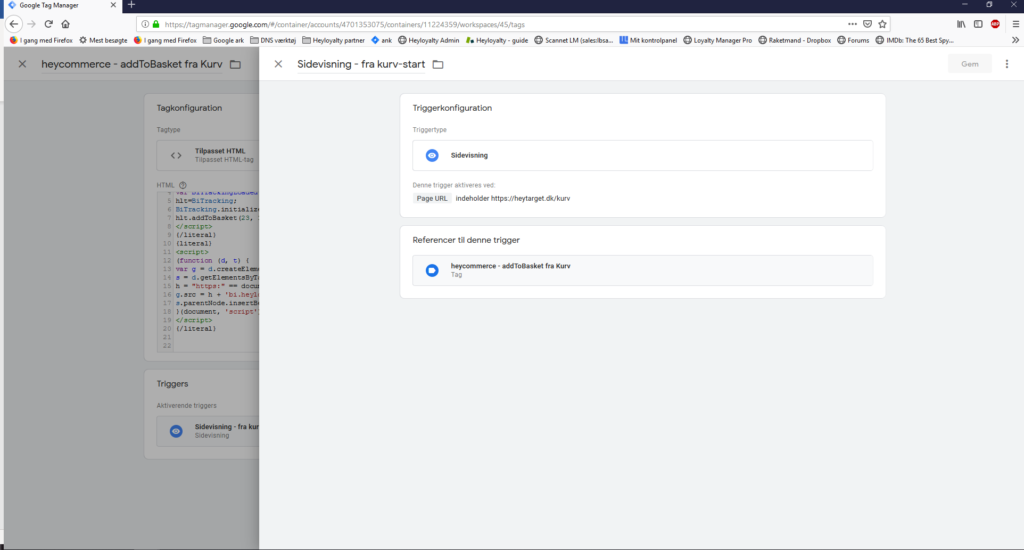
In GTM, you use Triggers to define when a script should be fired. It is essential that each event is only fired from the relevant pages.
In the example below, the addToBasket script is only sent if the URL contains https://heytarget.dk/kurv.
Step 3: Limit purchasedBasket to the thank-you page
In the same way as with the basket page, hlt.purchasedBasket is limited so that it is only fired from the thank-you page. This ensures that completed purchases are registered correctly.
Step 4: Publish your changes
Remember to publish your changes in GTM after each adjustment. Then refresh and clear the cache by pressing Ctrl + F5.
Troubleshooting via Chrome’s console
You can use Chrome’s developer console to check whether your events are fired correctly.
- Open the console with F12, or right-click and select Inspect.
- Go to the Network tab.
- Reload your website.
- Filter on heyloyalty to see which calls are sent, and with which values.
This way you can verify that the right events fire from the right pages with the correct parameters.
You are now ready to track via GTM
You have now learned which event types tracking uses, how to set them up as tags and triggers in Google Tag Manager, and how to troubleshoot via the console. Once your events fire correctly, you can start making use of data from your visitors – for example for lost basket flows and product recommendations.